QRone vs Google Lens: a QR scanner that also creates codes
Google Lens is a brilliant visual search tool that happens to read QR codes. QRone is built only for codes: scanning them, creating them and finding them again later.
The short answer
Stick with Google Lens if you scan a code now and then and also use Lens to translate text or identify things. Get QRone if you scan often, want a searchable history of what you scanned, or need to create QR codes for links, Wi-Fi, contacts and more.
Where Google Lens falls short for QR codes
On most Android phones, Lens is already there: in the Google app, in Google Photos and often in the camera. Point it at a QR code and it shows you the link. For a one-off scan of a restaurant menu, that's all you need.
But Lens is a search tool first. It's designed to tell you what you're looking at, not to manage codes. That shows up quickly if codes are part of your routine:
- It can't create QR codes. Lens reads codes but has no generator. Android can show a QR code to share your Wi-Fi from settings, but for a link, a contact card or an event you need another app.
- There's no scan list. Lens isn't built for record-keeping, so it doesn't give you a dedicated, searchable list of codes you've scanned. If you need that parcel tracking link or Wi-Fi password again, you usually scan again.
- It does a lot at once. Lens also looks for objects, text and products in the frame. When you just want the code, a scanner that does one job can feel quicker.
QRone vs Google Lens at a glance
| Feature | QRone | Google Lens |
|---|---|---|
| Built for | Scanning and creating QR codes and barcodes | Visual search, with QR scanning built in |
| Scan QR codes | Yes, with auto-detection | Yes |
| Scan from a photo | Yes, from your gallery | Yes |
| Create QR codes | 14+ types: link, Wi-Fi, contact, text, email, event and more | Not available |
| Scan history | Searchable, saved on your phone | No dedicated list of scanned codes |
| Sign-in | None | Runs in the Google app, under your Google account settings |
| Other tricks | Focused on codes | Translate text, identify objects, shop and search |
| Price | Free, ad-supported | Free, no ads |
What QRone does differently
Scanning that does one thing fast
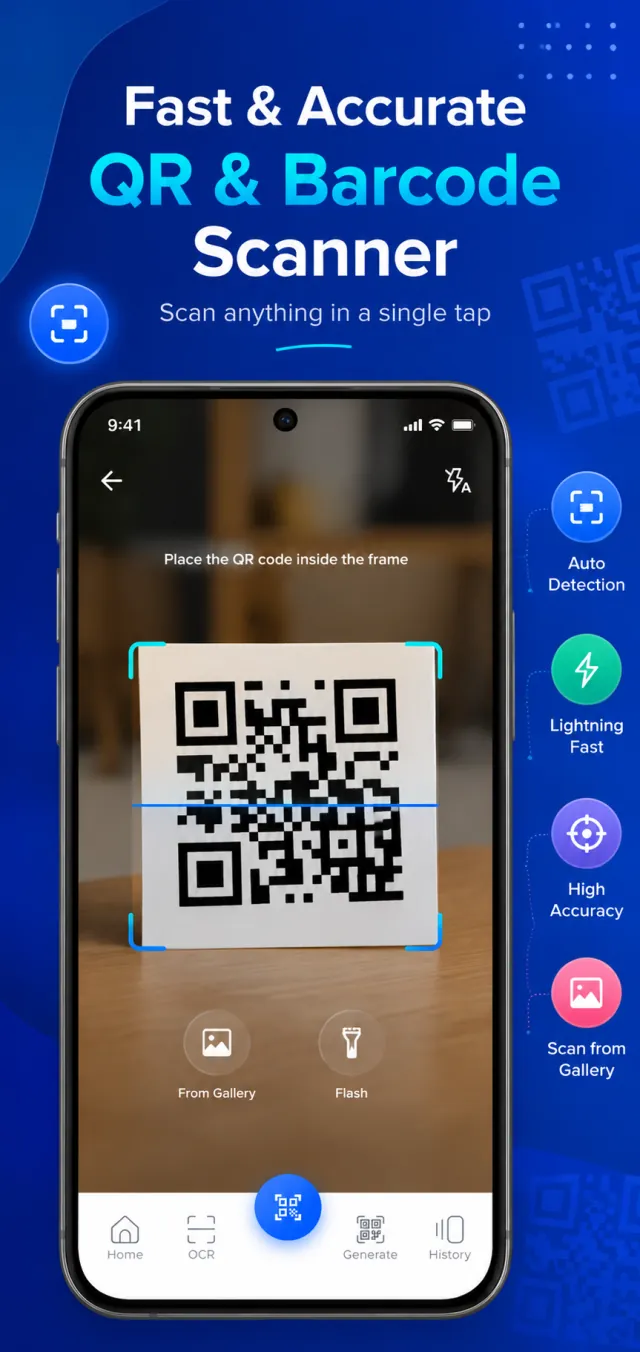
Open QRone and the camera is ready. Hold a code inside the frame and it's detected automatically, with no shutter button to press. It reads QR codes and common barcode formats such as EAN, UPC and Code 128. It works in low light, there's a flash toggle for dark corners, and you can scan a code from a screenshot or photo in your gallery.
Create QR codes in seconds
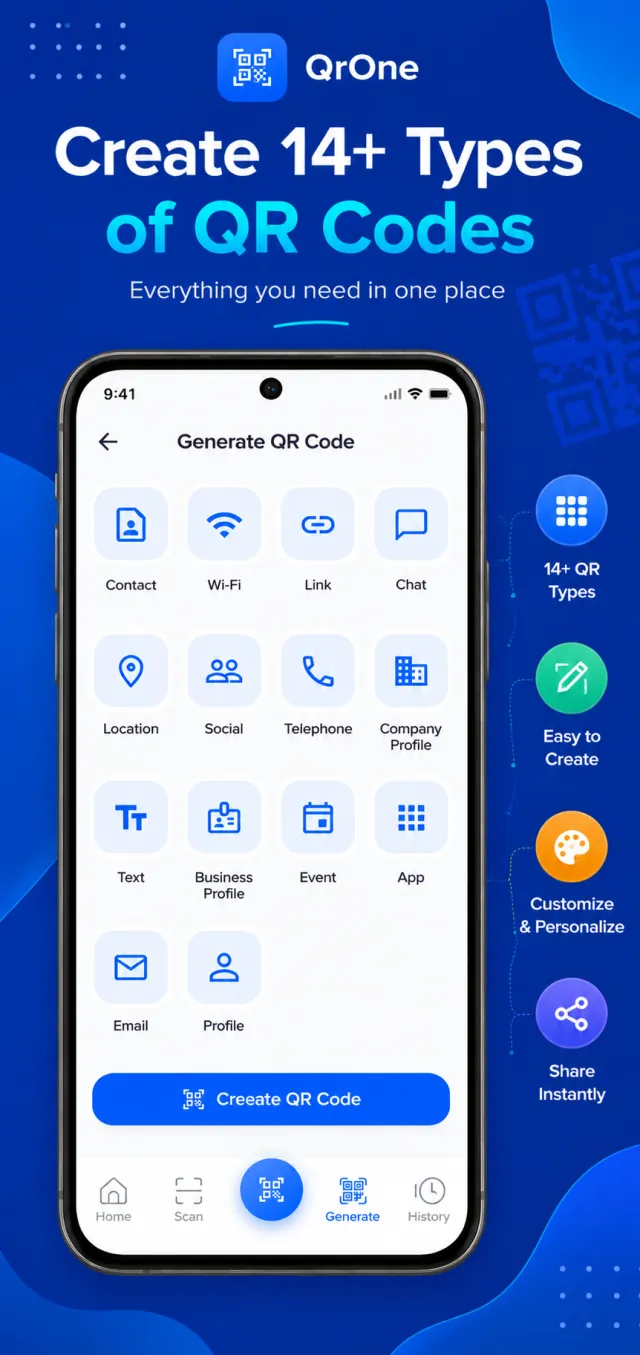
This is the biggest gap Lens leaves. QRone's generator covers more than a dozen code types: links, plain text, Wi-Fi networks, contact cards, phone numbers, email, locations, events, social profiles and business profiles. Fill in the details, and share or save the code.
It's handy for a shop counter (a Wi-Fi code for customers), a business card (a contact code), or an event invite (a calendar code guests can add in one scan).
A history you can actually search
Every scan is saved to a searchable history, so the link you scanned off a poster last week is still there when you need it. That history is stored on your phone. It isn't uploaded or sold.
One tap to act on a result
When a code is scanned, you can copy, open or share the result straight away, whether it's a URL, a block of text or a product number.
Offline and minimal
Scanning and generating both happen on your device, so QRone works with no internet connection and needs no account. It also avoids asking for permissions it doesn't need. QRone is free and supported by ads.
When Google Lens is the better choice
- You rarely scan codes. If it's a few times a month, Lens is already on your phone and there's nothing to install.
- You want more than codes. Lens can translate a sign, identify a plant or find a product from a photo. QRone doesn't try to do any of that.
- You don't want ads. Lens is ad-free. QRone is free because it shows ads.
Plenty of people use both: Lens for "what is this?", QRone for anything to do with codes.
Getting started with QRone
- Install QRone from Google Play and allow camera access.
- Scan a code. It's detected automatically and saved to your history.
- To create a code, open Generate, pick a type such as Wi-Fi or Contact, fill in the details and tap Create QR Code.
- Share the code or save it to your gallery to print later.
Disclosure: QRone is made by MYX, the publisher of this article. Google Lens is a trademark of Google LLC, and MYX is not affiliated with or endorsed by Google. Details about Google Lens were checked in October 2026 and may have changed since.
QRone vs Google Lens: questions
No. Google Lens can read QR codes, but it doesn't generate them. To create a QR code for a link, text, Wi-Fi network or contact, you need a generator such as QRone.
QRone reads QR codes plus common 1D barcodes such as EAN, UPC and Code 128.
Yes. Scanning and QR generation run entirely on your phone, with no internet connection or account required.
On your phone. Your history is stored locally and is never uploaded or sold.
Yes. You can pick an image from your gallery and QRone will read the code in it.
Yes. QRone is free on Google Play and supported by ads.